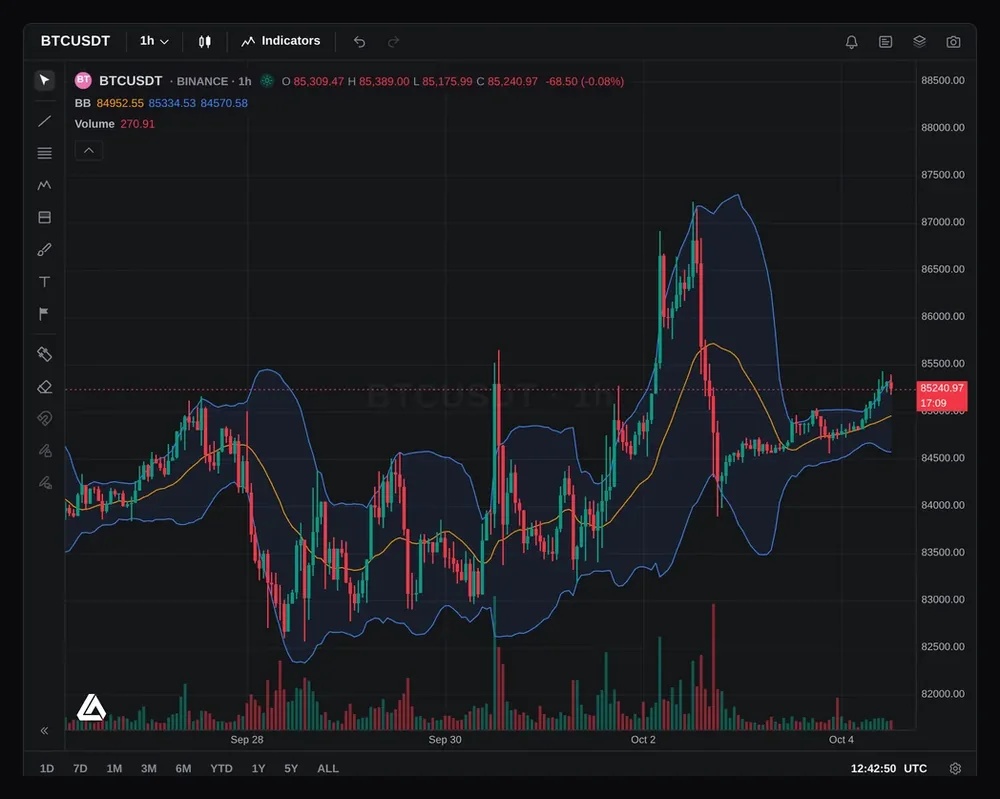
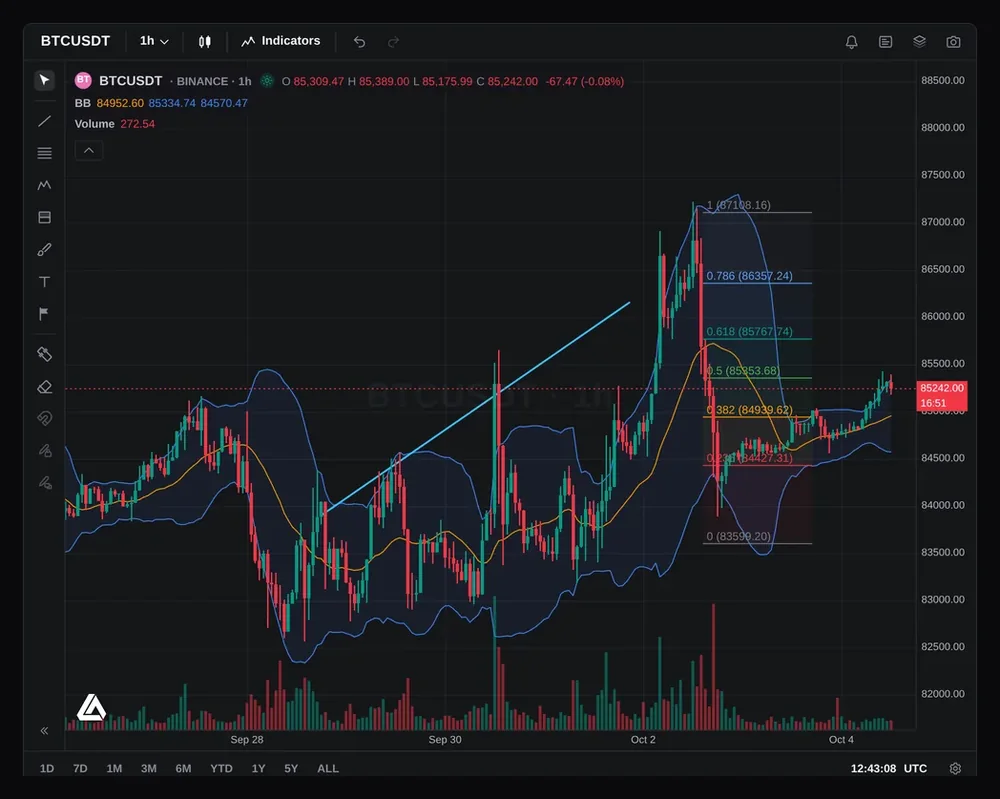
Screenshot of the workspace on BTC/USDT, one-hour candles.
Open a chart without leaving the site. Futures, crypto and forex, with order flow, GEX levels, 70+ indicators and drawing tools that work the way you expect. Practise with paper trading and bar replay, next to the lessons that taught it.
Charts are for practice and study. Education only. Not financial advice.
What’s in the charts workspace
Real screens from the workspace. Scroll through, or jump to one.
BTC/USDT, one-hour candles.
01 / 10
Candles, volume and price scale
A candlestick chart with volume, a price scale you can switch to logarithmic, and quick ranges from one day to all available history.
How it works
Switch the chart style between candles, bars, line, area, baseline and Heikin Ashi, set the time zone, and zoom or pan with the mouse, trackpad or touch.
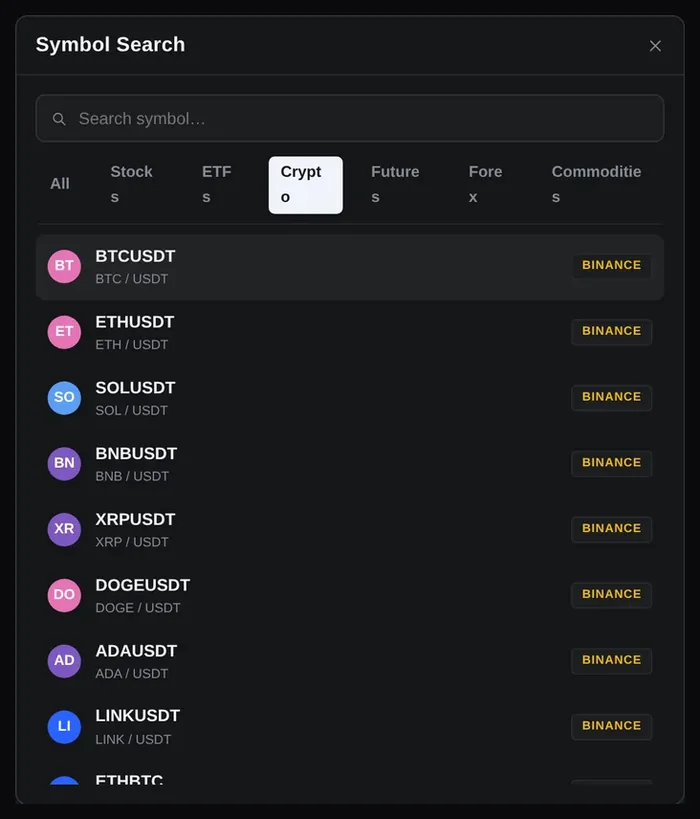
The symbol search, crypto tab.
02 / 10
Futures, crypto and forex
Search for a market and open it on the chart: index, metal and energy futures such as NQ, ES, YM, GC and CL with their micros, crypto pairs, and major forex pairs.
How it works
Crypto comes from public Binance, Coinbase and Hyperliquid feeds. Futures and forex come through our own data server. You can also connect your own Rithmic data.
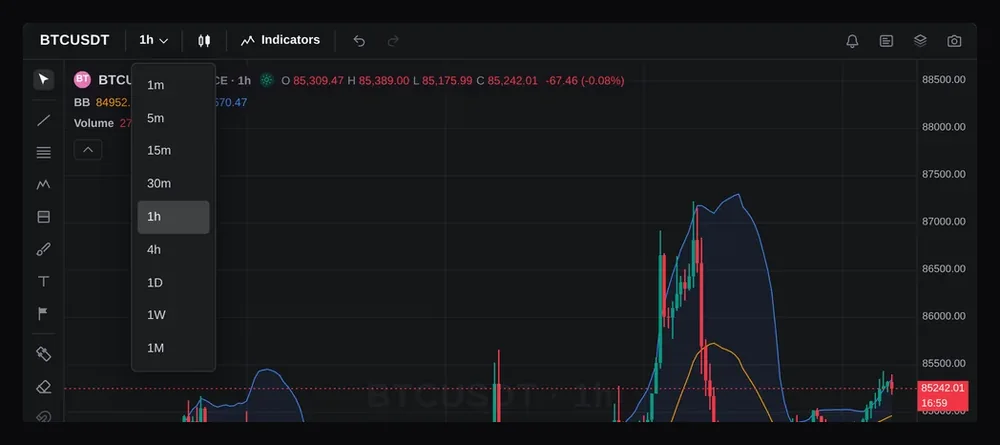
The timeframe menu.
03 / 10
Timeframes
Nine timeframes from one minute to one month, so you can move from the higher-timeframe picture down to an entry timeframe on the same market.
How it works
The chart remembers the market and timeframe you last used.
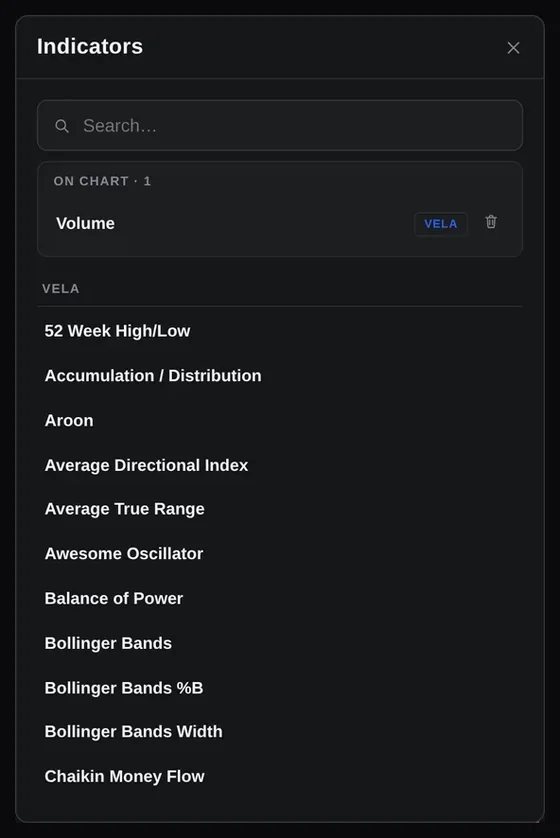
The indicators dialog.
04 / 10
70+ built-in indicators
Search and add from more than 70 built-in indicators, from moving averages, VWAP and Bollinger Bands to RSI, MACD and volume profile.
How it works
Each indicator can be configured, hidden, moved to its own pane or removed. Indicators run on the candles in your browser.
A trend line and a Fibonacci retracement drawn on the chart.
05 / 10
Drawing tools
Lines, Fibonacci tools, patterns, measurements, shapes, text and icons, with a magnet that snaps to candle prices. Boxes have corner and edge handles, and every drawing has its own settings window.
How it works
Double-click a drawing to change its style, text, coordinates and which timeframes show it. Drawings stay on the chart for that market and are saved to your account. Use the object tree to find, hide or delete them.
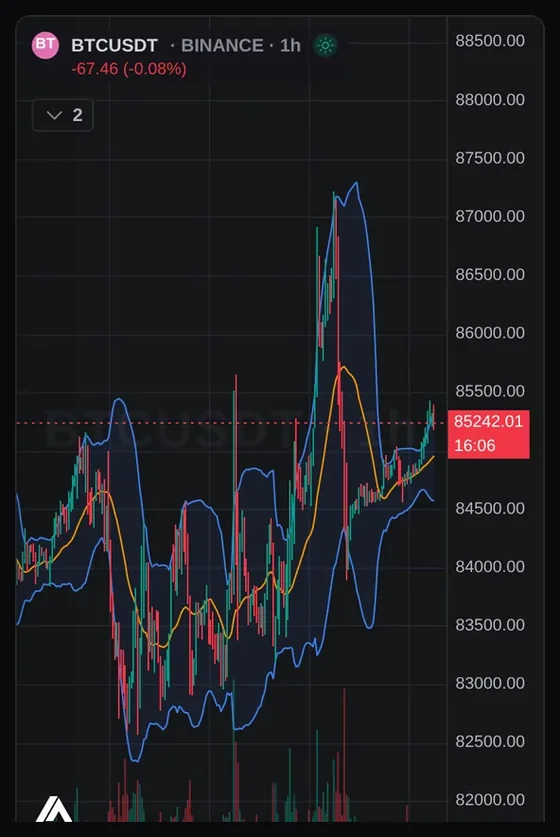
The same chart on a phone.
06 / 10
Works on a phone
Pinch to zoom and drag to pan. The chart fills the screen, with the tools a tap away.
How it works
On a small screen the toolbars collapse so the chart keeps the space.
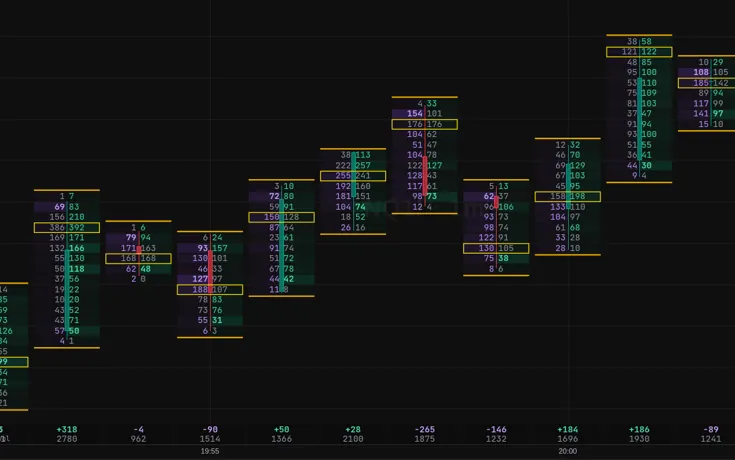
Footprint on NQ, one-minute bars.
07 / 10
Order flow from real trades
Footprint, delta, CVD, big trades, absorption, imbalance zones, stop runs, volume and market profile, on futures and crypto.
How it works
Pick Footprint as the chart style, or add any tool from the Order Flow group. See every order flow tool.
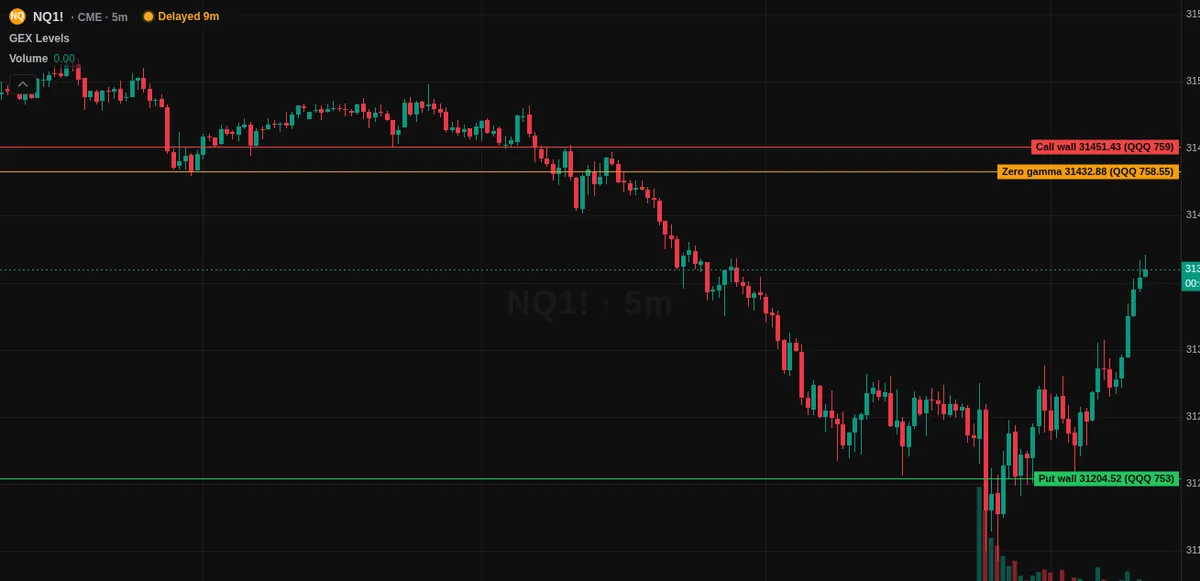
GEX levels on NQ, five-minute bars.
08 / 10
GEX on the chart
Call wall, put wall and zero gamma drawn on the futures chart, plus a GEX heatmap and a GEX ladder beside the price scale.
How it works
Levels come from the same calculation as the GEX page. The Free plan covers SPX levels (ES and MES); Pro adds the other symbols and expiries.
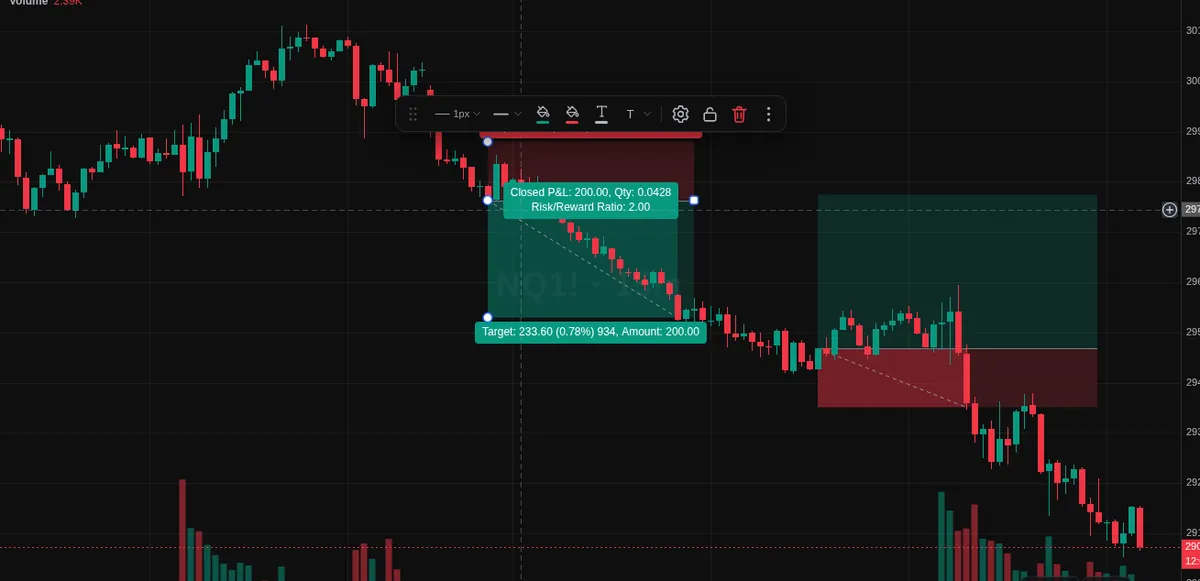
Long position tool on the chart.
09 / 10
Long and short position tool
Plan a trade on the chart: entry, stop and target zones with the risk-to-reward shown as you drag.
How it works
Drag the handles to move the entry, stop or target. It is a planning drawing; it places no orders.
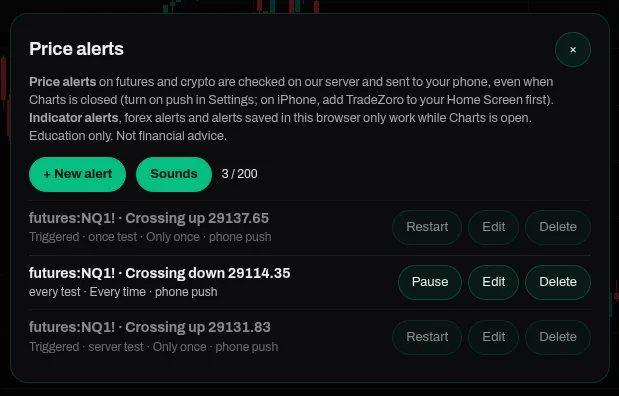
The price alerts panel.
10 / 10
Paper trading, bar replay and alerts
Trade with demo money on simulated fills, replay past sessions bar by bar, and set price alerts that reach your phone, or alerts on your indicators.
How it works
Paper trading is off until you switch it on in Chart settings. Price alerts on futures and crypto are checked on our server and sent as a push, even with Charts closed.
How it works
Nothing to install and no broker account needed.
1
Open Charts
Charts sits in the member area, next to the other tools.
2
Pick a market
Search a futures market, a crypto pair or a forex pair, and choose a timeframe.
3
Make it yours
Add indicators and drawings. Your layouts, drawings and favourites are saved to your account.
One way to use it with the lessons
A simple routine for practising what a chapter teaches. Tap a step, or let it play.
Marking a chart is practice. It is not a signal to trade. Education only. Not financial advice.
Questions
Where does the data come from?
Crypto candles load from public Binance, Coinbase and Hyperliquid feeds. Futures and forex come through our own data server, and futures order flow is built there from every trade. You can also connect your own Rithmic data.
Can I trade from the chart?
Only with demo money. Paper trading fills simulated orders against the chart so you can practise. The workspace is not connected to any broker and places no real orders.
Which markets are there?
Futures such as NQ, ES, YM, RTY, GC, SI and CL with their micros, crypto pairs such as BTC/USDT and ETH/USDT, and major forex pairs.
Are my drawings saved?
Yes. Layouts, drawings, templates and favourites are saved to your account, so they follow you to another device.
Whose charting engine is it?
The workspace is built on Vela, an open-source charting library released under the Apache-2.0 licence.
Which plan includes it?
Order flow on NQ (the last 24 hours) and on crypto is free, and so are SPX GEX levels. Pro adds order flow on every supported futures market with full history, and GEX on every symbol.
Open a chart next to your lessons
Create your account, then open Charts from the member area.